
Cortex Project History | Item Collection
Work with the item collection
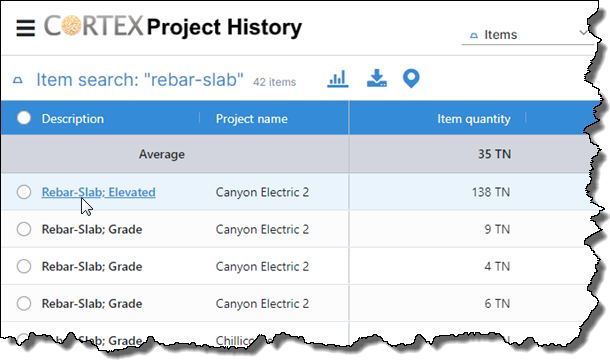
The item collection provides a tabular layout of all the items (Items are similar to estimate items in Sage Estimating. They display in the bottom pane of the single project page when viewing elements.) that meet your search criteria. This view is helpful for reviewing items across your projects.
You can filter (apply attribute criteria to narrow the search results) the search results, view more information about an item, add and remove columns, change the column order, and resize columns in the item collection.
How do I?
View more information about an item
To open the single project page for the project associated with a specific item, click the item description. The single project page opens with the item highlighted in the item grid on the Elements tab.
See the projects associated with this item
Click the project count link in the title bar (the white area at the top of the Cortex window) to show the project collection. To return to the item collection, click the item count link in the title bar.
Add project fields to the grid view
Why would I do this?
Adding project fields to your grid view can help to better understand the nature of the element and item records.
- To add a project field to the grid view, click
 (Settings) in the top-right corner of the element collection, then select Settings from the list.
- Click on the Columns tab and select any of the project fields available in the Available column to add to the Selected column.
- Once finished adding all the project fields you need, click Apply at the top of the page.
Remove items from the collection
To remove one or more items from the collection, select the item's check circle and click  (Remove items). This removes the items from the collection, but not from Cortex.
Select a different view
- Click
 (Settings).
- Select the desired view in the list.
The name of the view currently in effect for the collection displays in the top right corner of the application window. If you make changes (resize a column, reorder the columns, etc.) to the view while working in the collection, an asterisk displays next to the view name indicating changes were made.
Your changes are temporary and persist until you select a different view for the collection. To make permanent changes to a view, an administrator needs to use Views > Item collection > Grid views in the Administration module.
Modify the collection view
- Click
 (Settings), located above the grid, and then click Settings to open the Settings page.
- On the Columns tab, the Selected list shows the columns that currently appear in the grid.
- To add a column, drag the desired column from the Available list and drop it in the Selected list. Expand and collapse column groups and use the Search box as needed to locate the desired column in the Available list.
- To remove a column, double-click the desired column in the Selected list. You can also select the column and click
 on the selected column to remove it from the Selected list.
- To change the column order, use drag-and-drop to rearrange the columns in the Selected list.
- Do the following to change the visible statistic rows (These rows help you analyze the totals for the items. They are gray and appear at the top of the collection.):
- Click the Statistic rows tab located above the Available list.
- Move the desired statistic rows from the Available list to the Selected list to make them visible in the collection.
Ignore zeros tip
The Ignore zeros option determines whether the statistic rows include or exclude items that contain zeros. If an item in the collection contains a zero and is not applicable to your scenario, select the Ignore zeros option. However, if it does apply and you want it included in the Average and other statistic calculations, clear the Ignore zeros option.
Statistics always ignore null (blank) values. Depending on your suppression settings, some zero values can appear blank. You can download an import template for a project to see what values the fields actually contain.
Ignore baseline in statistic values tip
The Ignore baseline option determines whether the statistic values include or exclude the baseline item. Select this option to exclude the baseline item from the statistic values. Otherwise, clear this option to include the baseline item in the statistic calculations. This setting applies anywhere that statistics are visible in Cortex Project History.
- When you finish changing the view, click Save.
Tip
After you modify the collection view, your changes persist between your Cortex Project History sessions unless you select a different view.
Resize columns
Click and drag the divider between columns to resize a column.
Remove one or more item rows from the collection
- Select the check circles of the item rows you want to remove.
- Click
 (Remove).
Select a baseline item
- Click the row circle to select the item.
- Click
 . The baseline item moves to the top of the grid and is shaded orange.
As you scroll through the element rows, the baseline item remains visible at the top.
To remove the baseline item selection, click  .
To replace the current baseline item, select the item you want to replace it with and click  .
Change the visible statistic rows
Statistic rows (Average, High, Baseline to median, Median, Spread, Low, and more) help you analyze the totals for the items. Statistic rows are gray and appear at the top of the collection.
Do the following to change the visible statistics rows:
- Click
 (Settings), located above the grid, and then click Settings to open the Settings page.
- Click the Statistic rows tab.
- Move the desired statistic rows from the Available list to the Selected list to make them visible in the collection.
- When you finish, click Save.
Ignore zeros tip
The Ignore zeros option determines whether the statistic rows include or exclude items that contain zeros. If an item in the collection contains a zero and is not applicable to your scenario, select the Ignore zeros option. However, if it does apply and you want it included in the Average and other statistic calculations, clear the Ignore zeros option.
Statistics always ignore null (blank) values. Depending on your suppression settings, some zero values can appear blank. You can download an import template for a project to see what values the fields actually contain.
Ignore baseline in statistic values tip
The Ignore baseline option determines whether the statistic values include or exclude the baseline item. Select this option to exclude the baseline item from the statistic values. Otherwise, clear this option to include the baseline item in the statistic calculations. This setting applies anywhere that statistics are visible in Cortex Project History.
Recalculate statistics
If you set a filter and change the makeup of the collection when the statistic rows are visible, click Recalculate statistics in the title bar (the white area at the top of the Cortex window) to recalculate the statistic values. Dashes (-) appear in the statistic rows and the Recalculate statistics link becomes available in the title bar when statistics need to be recalculated.