
Cortex Project History | Search
Search for projects, elements, or items
You can search for projects, elements (Elements are aggregated cost subtotals, usually aggregated by your MasterFormat, Uniformat or CSI levels, or whatever coding scheme you use for totaling your unit costs. They display in the top pane of the single project page when viewing elements.), or items (items display in the bottom pane of the single project page when viewing elements.).
To search for projects, elements, or items
- Locate the context selector and select an option based on what you want to search for: Projects, Elements, or Items.
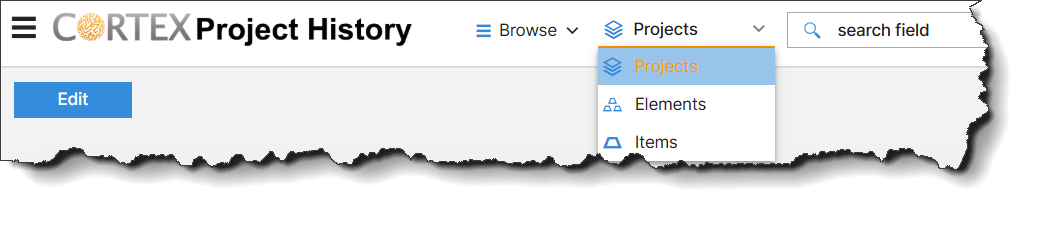
- Enter your search keyword(s) in the Search box or click
 in the Search box and select one of your recent searches in the Recent searches dropdown.
- To search for multiple keywords, type all the keywords you would like to search (spaces included) in the search box. For example, to search for projects belonging to a Hospitality project type with a Gold LEED rating, enter Hospitality Gold in the Search box.
- Note that for elements, Cortex Project History searches only the element IDs and descriptions for a match with your keywords.
- To find all the projects, elements, or items in Cortex Project History, enter an asterisk * in the Search box. Note that if your data set is very large, the server could time out. You can click the back button in the browser or the Cortex Project History logo (home page) if you want to cancel the search.
- Click Search or press ENTER.
Cortex Project History displays a collection of projects, elements, or items that contain all the keywords you entered.
Tips
- To paste keywords into the Search box, copy the desired keywords (CTRL + C), click in the Search box, and press CTRL + V (or right click your mouse and select, "Paste").
- To see your recent searches, click in the Search box. Your recent search entries will display in a dropdown.
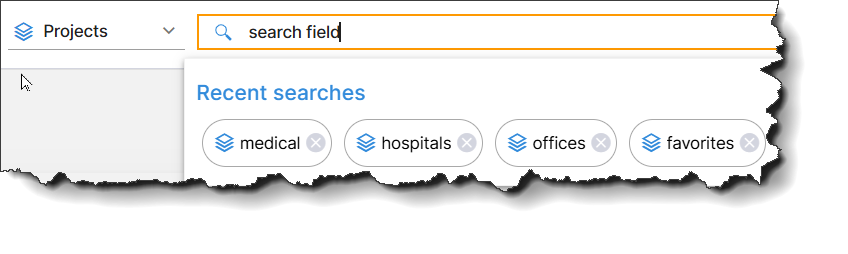
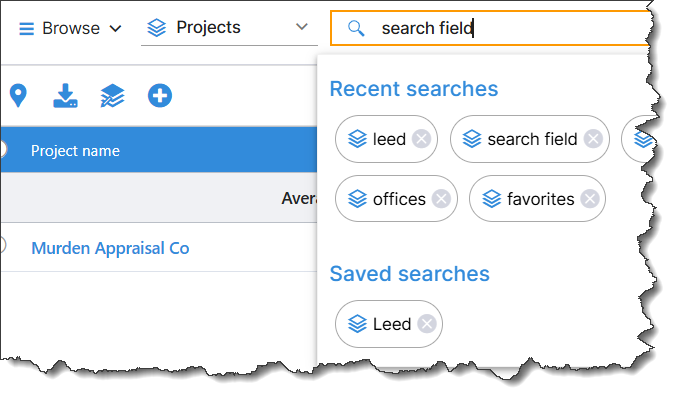
- To use a saved search, click in the Search box. Your saved searches display in a dropdown along with your recent searches.
- The View column displays in the search results when an element appears in multiple views (e.g., Discipline, Uniformat) and the element may not total the same in all views.
- You can filter the project, element, or item search results by a column. Simply hover on the column heading, click
 , and complete the settings in the filter pane.
Filter search results
By a column
You can filter the project, element, or item search results by one or more columns.
- Hover on the column heading you want to filter the search results by.
- Click to open the filter pane.
- Complete the settings in the filter pane. The settings vary based on the field type:
- Alphanumeric field: Select the values you want to filter by. For example, when you filter by Project location, select the cities you want to filter the results by.
- Numeric field: Select a comparison operator(Greater than, Equals, Not equal, Less than, etc.) from the list and enter a value in the box.
- To set another condition for the filter, select AND (a project must meet both conditions) or OR (a project can meet either or both conditions), select another comparison operator, and enter a value for the condition. Repeat this process to set additional filter conditions, as needed.
- Date field: Select a comparison operator(Greater than, Equals, Not equal, Less than, etc.) from the list and select or enter a date for filtering the results.
- To set another condition for the filter, select AND (a project must meet both conditions) or OR (a project can meet either or both conditions), select another comparison operator, and enter a value for the condition.
- Click Apply to apply the filter to the search results.
- Repeat steps 1-4 to set additional column filters as needed.
Tip
To clear a filter, hover on the column heading, click , and click Reset in the filter pane.
By project attribute
You can filter the project, element, or item search results by one or more columns.
- Hover on the column heading and click to open the window.
- Complete the settings in the filter window. The settings vary based on the field type.
- Alphanumeric field: Select the values you want to filter by. For example, when you filter by Project location, select the cities you want to filter the results by.
- Numeric field: Select a comparison operator (Greater than, Equals, Not equal, Less than, etc.) from the list and enter a value in the box.
- To set another condition for the filter, select AND (a project must meet both conditions) or OR (a project can meet either or both conditions), select another comparison operator, and enter a value for the condition. Repeat this process to set additional filter conditions, as needed.
- Date field: Select a comparison operator (Greater than, Equals, Not equal, Less than, etc.) from the list and select or enter a date for filtering the results.
- To set another condition for the filter, select AND (a project must meet both conditions) or OR (a project can meet either or both conditions), select another comparison operator, and enter a value for the condition.
- Click Apply to apply the column filter.
- Repeat steps 1-3 to set additional column filters as needed.
Save a search
When you navigate to a project, element, or item collection using keywords to browse or search Cortex Project History, the system captures the keywords you entered along with any of the following refinements you made to the resulting collection:
- Filters applied in the filter pane
- Applied factors
- Row sorting
You can save a search so you can run it again later without having to specify all the settings again.
- Browse or search for projects, elements, or items.
- (Optional) Apply some or all of the following to narrow the results:
- filters
- factors
- row sorting
- Click
 (Settings), and then click Save search in the list.
- In the Save Search window, enter a name for the search in the Search name box.
- Select the desired options for the saved search:
- Save to search box panel: This option makes the saved search available from the Search box. (Click in the Search box to open the popup.)
- Save as portfolio: This option is available for project collections. It saves the projects in the collection, along with any applied factors, to a portfolio.
From the Save to folder list, select the folder where you want to save the portfolio.
Cortex creates the portfolio and opens it on a new browser tab when you click Save.
On the General tab, the Saved search field contains a link (You can click the link to open the saved search used to create the portfolio) with the name of the saved search used to create the portfolio and the Last refresh field shows the date and time that the portfolio was last refreshed. Cortex refreshes the portfolio every time you open it.
- Click Save.
Delete a saved search
- Click in the Search box.
- In the popup, click
 on the saved search bubble.

Cortex 365 does not include the portfolios feature, so the search list does not have a Portfolios option.