
Cortex Project History | Browse
Browse for projects, elements, or items
You access the browse feature at the top of the Cortex Project History window.
To browse for projects, elements, or items
- Locate the browse icons.

From the context selector, select what you want to browse for: Projects, Elements (Elements are similar to overlines in Sage estimates. They are aggregated cost subtotals, usually aggregated by your Uniformat or CSI levels, or whatever coding scheme you use for totaling your unit costs. They display in the top pane of the single project page when viewing elements.), or Items (Items are similar to estimate items in Sage Estimating. They display in the bottom pane of the single project page when viewing elements.).
To browse elements or items for specific projects, start by selecting the desired projects in the project collection, and then select Elements from the context selector. Cortex Project History will filter the elements or items in the browse list based on the selected projects.
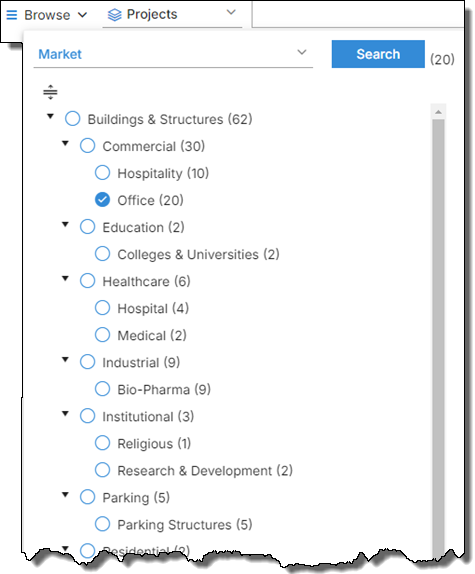
- Expand the Browse list.
- To change how the projects, elements, or items are organized, select a different group from the group by list located at the top of the Browse list.
- For Projects, the number in parentheses indicates the number of projects in each level within the hierarchy
- For Elements, the number in parentheses indicates the number of elements in the system that have aggregated items in that level within the hierarchy. For example, B Shell (68) indicates that 68 elements across all my projects have items aggregated for the B Shell Uniformat code.
- For Items, the number in parentheses indicates how many items in the system are associated with a specific element. For example, B Shell (2,106) indicates that 2,106 items across all my projects are tagged with the B Shell Uniformat code.
- Select one or more nodes in the list and click Search at the top of the Browse list to open the collection associated with the selected nodes.
For example, to open the collection for Building Structures projects, click the Building Structures link. To open the collection for commercial office projects, click the Office link.
Cortex 365 does not include the portfolios feature, so a browse icon is not available for portfolios.