
Cortex Budget Builder | Budget Collection
Work with the budget collection
Open a budget
Click  and select Budget Builder from the menu. The Budgets page opens on a new browser tab.
The folder pane displays on the left side of the Budgets page so you can browse available budgets. The budget collection displays on the right side of the Budgets page based on the folder selected in the folder pane.
Use the budget switch (located at the top of the left view pane, below the search field) to switch between lists for All Budgets or My Budgets.

Program Budgets, Budgets, and Subbudgets
A Program Budget is a budget that contains and organizes one or more subbudgets associated with a Program Project and its related subprojects.
A Budget is the financial plan for a project. Budgets can exist independently or can be organized under a Program Budget as subbudgets.
A Subbudget is a budget associated with and managed under a Program Budget. Each subbudget corresponds to a specific subproject and represents the financial scope of work that contributes to the Program Project's overall objectives.
If a budget is not related to any programs or subbudgets, a blank page icon ( ) will be displayed next to the project name. If the budget is a subbudget and included in a program, the icon will appear as an inverted color page icon (
 ) next to the name.
Locked/Unlocked Budgets and Subbudgets
A budget or subbudget can be locked to prevent users from temporarily making any changes. Although a budget may be locked, it can still be viewed. Locked budgets and subbudgets will have a padlock icon ( ) located next to the name.
Delete budgets from the budget collection
Select the check circles of the budgets you want to delete, click  (Delete budgets), and confirm that you want to permanently delete the budgets.
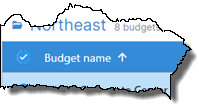
To select all the budgets in the collection, select the Budget name check circle in the column heading row.
Delete an entire folder of budgets
In the folder pane, right-click the folder containing the budgets you want to delete, click Delete, and confirm that you want to permanently delete all the selected folder and all its contents.
Select a baseline budget
- Click the row check circle to select the budget.
- Click
 . The selected budget moves to the top of the collection and is highlighted for easy identification.
As you scroll through the budget rows, the baseline budget remains visible at the top.
To remove the baseline budget selection, click  on the budget row's popup menu.
To replace the current baseline budget, select the budget you want to replace it with and click  on the budget row's popup menu.
Filter the collection
- To filter the grid by a specific column, click
 (Filter) in the column heading to open the filter pane.
- Complete the settings in the filter pane.
- Alphanumeric field: Select the values you want to filter by. For example, when you filter by Project location, select the cities you want to filter the results by.
- Numeric field: Select a comparison operator (Greater than, Equals, Not equal, Less than, etc.) from the list and enter a value in the box.
To set another condition for the filter, select AND (a project must meet both conditions) or OR (a project can meet either or both conditions), select another comparison operator, and enter a value for the condition. Repeat this process to set additional filter conditions, as needed.
- Date field: Select a comparison operator (Greater than, Equals, Not equal, Less than, etc.) from the list and select or enter a date for filtering the results.
To set another condition for the filter, select AND (a project must meet both conditions) or OR (a project can meet either or both conditions), select another comparison operator, and enter a value for the condition.
- Click Apply to apply the filter to the collection.
- Repeat steps 1-3 to set additional column filters as needed.
Tip
To clear a filter, hover on the column heading, click (Filter), and click Reset in the filter pane.
Sort the collection
To sort the budgets in the collection by a specific column, click the heading of the column you want to sort by. Clicking the column heading multiple times switches between the following modes:
- Sort in ascending order
- Sort in descending order
- Turn off sorting
Apply a different view to the grid
Modify the columns shown in the grid
Resize columns
Click and drag the divider between columns to resize a column.