
Cortex | Administration | Info Pane Similarity Rules
Manage similarity rules (Administration)
 Only users who are set up as administrators in Cortex have access to this feature.
Similar projects display in the project information pane on the single project page. Use the Similarity rules option to set up the rules that Cortex Project History uses to determine which projects, elements, and items are similar to other projects. You can set up similarity rules for projects, elements, and items. Rather than having to sift through all your projects trying to figure out which ones are similar to the one you're working on, Cortex Project History can do the work for you using the similarity rules you set up in the Administration module.
Examples of similarity rules
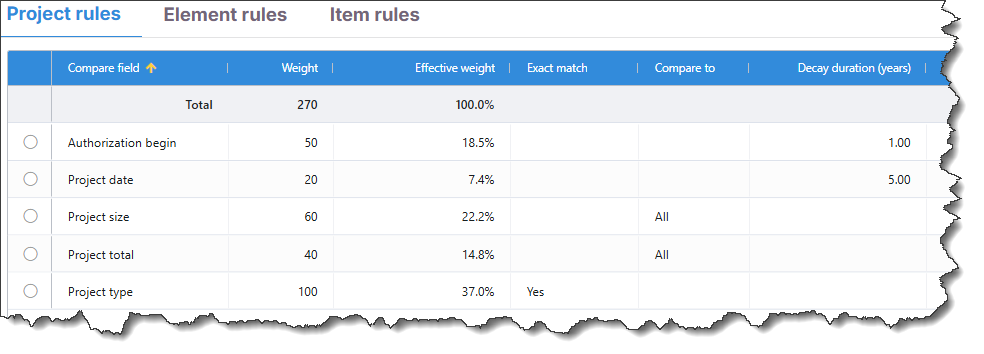
The sample data below includes three rules set up for identifying similar projects:
- Project size
- Project total
- Project type (Exact match)
Project size example
Using this rule, the system identifies a project as being similar if its project size is near the current project's size. This rule has a weight of 60% and an effective weight of 22.2%.
Project total example
Using this rule, the system identifies a project as being similar if its project total is plus or minus 10% of the current project's total. This rule has a weight of 40% and an effective weight of 14.8%.
Project type (Exact match) example
Using this rule, with the exact match set to Yes, the system identifies a project as being similar if the project type is an exact match the current project. This rule has a weight of 100% and an effective weight of 37%.
How do I?
Open the Administration module
Click  and select Administration from the menu. The Administration module opens in a new browser tab.
Add similarity rules
Tip
The number and type of rules you set up depends on the nature of your company's projects. For example, if your company's projects are very similar with only subtle differences between them (e.g., wind farms), it may be best to set up several granular similarity rules. On the other hand, if your company performs many diverse project types, you probably don't want to set up too many rules because the system won't identify any similar projects.
- In the Administration module, click Similarity rules from the options list (left pane).
- Select one of the Project rules, Element rules, or Item rules tabs.
- Click Add. The Add Rule window opens.
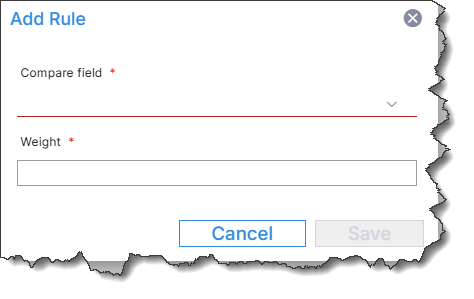
- From the Compare field list, select the field on which you want to base the rule. You can create rules for the numeric field types and single-select list fields.
- For the Weight, enter the weight (as a percentage) to assign to the rule. For example, you might want a rule based on Project size to have a greater weight (say, 80 or 90%) than a rule based on Number of floors, which you might give a weight of 50%.
- Enter additional factors for the rule. Depending on the type of Compare field you select, additional factors for comparison will be displayed.
- Date driven comparisons will require a Decay duration number of years.
- Text driven comparisons will give you the option to choose Exact match (e.g., "LEED" = Exact Match). Do not select Exact Match if you want a text to be similar (e.g., "Medical" and "Hospital" leave blank for Cortex to access similar types).
- A numeric driven (e.g., cost or quantity) comparison will give you the option to choose Compare to all or Compare to visible only.
- Click Save to save the similarity rule.
- Repeat steps 2-5 to add additional similarity rules.
Edit similarity rules
- In the Administration module, click Similarity rules from the options list (left pane).
- Select the rule you want to modify.
- Click Edit.
- Make the desired changes in the Edit Rule window.
- Click Save.
Delete similarity rules
- In the Administration module, click Similarity rules from the options list (left pane).
- Select the rule you want to delete.
- Click Delete.
- Click Delete to confirm the deletion.
The Similarity rules option is not available in Cortex 365. Administrators cannot manage (add, edit, or delete) similarity rules in Cortex 365.