
Cortex | Administration | Expressions for Fields
Add or edit expressions for fields (Administration)
 Only users who are set up as administrators in Cortex have access to this feature.
Cortex expressions (formulas) use basic math operators and built-in functions to calculate field values. Set up expressions to meet your needs similar to the way you set up equations in Microsoft Excel. You can create expressions for project fields, item fields, and element fields.
Note that adding or editing expressions requires you to refresh the existing data in Cortex Project History so it reflects those changes.
How do I?
Add an expression
- In the Administration module, Click on Fields to access the fields list (Project fields, Item fields, Element fields).
- Click on the Field type (Project fields, Item fields, Element fields) that contains the type of field you want to add an expression to, then click on Fields (e.g. Admin> Fields> Project fields <Fields).
- When the Manage [Project] fields page opens, click Add at the top of the page. This will open the Add [Project] Field window.
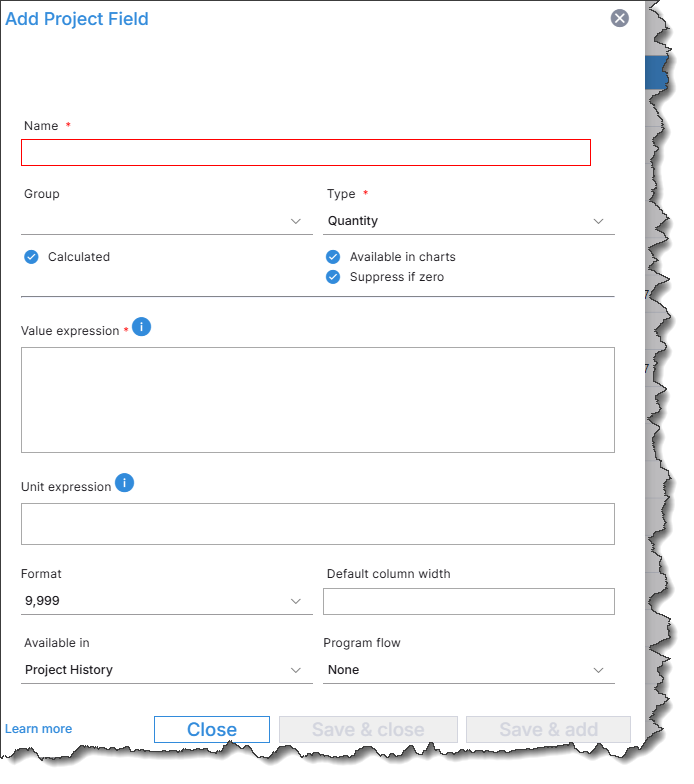
- Enter a name for the new expression.
- Select a Group from the dropdown menu.
- Select a Type (e.g. Text, Quantity, Numeric) from the drop down menu. Additional detail fields will display depending on the specific Type you select.
- Enter your preferences for the new expression.
If a Type is selected that can be calculated, a Calculated check circle will display. Buy checking the circle, you will open the Value Expression and Unit Expression boxes in the Add [Project] Field window. If the Calculated check circle is marked, entering a value expression is required.
In the Value expression box, enter the formula to use for calculating the field value.
Tips
- If you have an expression that is similar to the one you want to add, you can copy it and paste it into the Value expression box.
- For Text type fields, you can use an expression to concatenate values from other fields; for example, concatenate other field values to create a project type ID.
- The Value expression box has a built-in expression builder.
- If you type fx( into the expression box, a list of functions will appear to choose from.
- If you type [ ] into the expression box, a list of values will appear to choose from. Click on one of the values to filter and select a field value.
Use a Cortex field in an expression
Enter the record level ID followed by a pipe character ( | ) and the field name, and enclose the record level ID and field name within square brackets.
The record level IDs are:
- Project
- Item
- Element
For example, to use the Project size field (a project field) in an expression, enter the following:
[Project|Project size|Unit]
Note that only expressions for element fields can reference other element fields.
Use functions in expressions
You can use the following functions in expressions:
Basic arithmetic operators
Description: Use to perform basic arithmetic operations: addition, subtraction, multiplication, division.
Syntax: +, -, *, /
Example:
(([Item|Grand total] + ([Item|Material amount] * [Project|Sales tax rate])) – [Item|Markups]) / [Item|Quantity]
Example notes: This expression calculates the direct unit cost of an item by subtracting the markup amount from the Grand total after first adding sales tax to material costs and then dividing that total by the item’s quantity.
DateDif
Description: Calculates the number of days, months, or years, between two dates. Only full units are counted.
Syntax: DateDif(<Start date field>, <End date field>, '<Unit>')
Example: '' + DateDif([Project|Construction begin], [Project|Construction end], 'Y') + ' yrs ' + DateDif([Project|Construction begin], [Project|Construction end], 'M') +' mos'
Example notes: To construct an expression that returns text, the first part of the expression must be text, otherwise the calculation service considers the expression a numeric expression (even if the field is a Text type).
This expression returns text similar to “1 yrs 8 mos”. Notice the single quotation marks at the beginning of the expression, which force the calculation service to consider it a text expression. If the expression begins with a numeric value or function that is concatenated with text values or functions in the remainder of the expression it may produce an #ERROR# result.
<Unit> can be Y, y, M, m, D, d to calculate years, months, or days, respectively. It must be enclosed in single quotation marks.
When specifying a literal date in an expression, you must enclose it in hashtags (#). For example: DateDif(#1/1/2025#, [Project|Date field)
Day
Description: Returns the day of the month (1 to 31) for a date.
Syntax: Day(<Date field>)
Example: Day([Project|Construction begin])
Example notes: This expression returns the day of the month (e.g., 1) for the Construction begin field.
DayOfYear
Description: Returns the day of the year (1 to 365 or 366 for a leap year) for a date.
Syntax: DayOfYear(<Date field>)
Example: DayOfYear([Project|Construction begin])
Example notes: This expression returns the day of the year (e.g., 200) for the Construction begin field.
If function
Description: Returns a value based on a condition.
Syntax: If(evaluation, value_if_true, value_if_false)
Example: If([Item|Quantity] <> 0, [Item|Grand total] / [Item|Quantity], 0)
Example notes: This expression returns the item Grand total divided by the item Quantity if the Quantity is not zero, otherwise it returns zero.
IfNull
Description: Returns the value of the first argument if it is not null. If it is null, the value of the second argument is returned.
Syntax: IfNull(evaluation, value_if_null)
Example: IfNull([Item|Markup amount], 0)
Example notes: This expression returns the item Markup amount if it’s not blank; otherwise it returns zero.
in
Description: Returns whether an element is in a set of values.
Syntax: in(evaluation, criteria1, criteria2, …)
Example: If(in([Item|Uniformat I], ‘A’, ’B’, ‘C’, ‘D’), 1, 0)
Example notes: This expression returns a 1 (one) for every item where the Uniformat I value is A, B, C, or D. It returns a 0 (zero) for all other items.
IsNull
Description: Returns whether an element contains a null value.
Syntax: IsNull(evaluation)
Example: If(IsNull([Element|Lookup quantity]), [Element|Aggregated quantity], [Element|Lookup quantity])
Example notes: This expression returns the Aggregated quantity if the Lookup quantity is blank; otherwise it returns the Lookup quantity.
Month
Description: Returns the month (1 to 12) of the year for a date.
Syntax: Month(<Date field>)
Example: Month([Project|Construction begin])
Example notes: This expression returns the month of the year (e.g., 6) for the Construction begin field.
Round
Description: Rounds a value to the nearest integer or specific number of decimal places.
Syntax: Round(value, number of decimals)
Example: Round(1.2345, 2)
Example notes: Returns 1.23
Sum
Description: Adds an array (range) of numbers.
Syntax: Sum(sum_range)
Example: Sum([Item|Grand total])
Example notes: This expression returns the sum total of all the items for the project.
SumIf
Description: Adds an array (range) of numbers based on an evaluation of an array (range) for a specific element.
Syntax: SumIf(criteria_range, criteria, sum_range)
Example: SumIf([Item|Uniformat I], ‘A’, [Item|Grand total])
Example notes: This expression returns the Grand total of all items with a Uniformat I value of A.
SumIfs
Description: Adds an array (range) of numbers based on multiple evaluations of arrays (ranges) of specified elements.
Syntax: SumIfs(sum_range, criteria_range1, criteria1, [criteria_range2, criteria2], ...)
Example: SumIfs([Item|Grand total], [Item|Uniformat I], ‘A’, [Item|Item type], ‘DC’)
Example notes: This expression returns the Grand total of all items with a Uniformat l value of A and an Item type of DC.
Year
Description: Returns the year for a date.
Syntax: Year(<Date field>)
Example: Year([Project|Construction begin])
Example notes: This expression returns the year (e.g., 2025) for the Construction begin field.
Set up expressions for Ratio or Quantity type fields
In addition to using an expression to calculate a Ratio type field's value, you can use an expression to tell the system how to display the field's unit, if desired. The Value expression and Unit expression boxes become available for Ratio and Quantity type fields when you select the Calculated check circle.
Example:
Suppose you want the field to calculate the project Grand total divided by the Project size and you want it to look something like this: 100,000 $/SF
First, enter the expression for the value in the Value expression box to generate 100,000:
[Project|Grand total] / [Project|Project size]
Next, enter an expression in the Unit expression box to display the unit, $/SF:
[Project|Grand total|CurrencySymbol] + '/' + [Project|Project size|QuantityUnit]
Tip
Sometimes, it's more efficient to use a literal expression for a Ratio or Quantity field's unit. For example, if the Cost per Bed is calculated by dividing the Grand total by the numeric field # of Beds, you can simply enter '$/ea' for the Ratio or Quantity field's unit in the Unit expression box.
- To save the expression, click Save. The system validates your expression to make sure it will work.
Note that you cannot save an empty expression. If the Value expression box is empty, the system clears the Calculated check circle when you click Save.
- Test your expression.
You must run the administrative refresh procedure to see your expression on all projects. To quickly see your expression on a single project, simply re-import the project using Import projects. Note that all expression-based fields are calculated during the import and do not need to be included in the import template.
Unit expression
When you select Ratio as the Type, the Unit expression box becomes available. Building expressions in this box is similar to the Value express box, but this box can be used for the conversion of Imperial units to Metric units or vise versa. A sample Unit expression for square footage could look like:
SumIf([Item|Quantity|Unit], Unit('SF'), [Item|Quantity|Value])
This expression uses SF as a fixed unit and sums only values that use SF. With metric conversions enabled, SF values may be converted to M2. Because the expression is specifically looking for SF, the converted M2 values will not be included in the calculation.
Edit an expression
- In the Administration module, access the field list (Project fields, Item fields, Element fields) containing the field you want to edit and select the check circle of the field you want to edit.
- Click Edit.
- Modify the expression as needed. A lock symbol next to the Value expression box indicates a system expression or custom client expression that is read-only and not available for editing.
If you edit the expression for a system field, you can set it back to the default factory expression by clicking Reset to default above the Value expression box.
- To save your changes, click Save.
- Test your expression changes.